 aicentos
Codex++
Connect the aicentos GPT API to the Codex on your computer with the Codex++ enhancement launcher — pure API mode, graphical configuration, done in minutes
Last updated:
Codex++ is an external enhancement launcher and management tool for the Codex App. It does not modify the Codex App's original installation files; instead it launches Codex through an external launcher and injects enhancement scripts via the Chromium DevTools Protocol — so you can use it with peace of mind, your original Codex stays untouched.
This tutorial shows you how to connect aicentos' GPT API to the Codex on your computer: a few clicks in Codex++'s graphical interface, no hand-writing config.toml.
Prerequisites
- A computer (Windows / macOS both supported)
- A aicentos account, with a Key created on the API Keys page — include
codexin the name to make usage easier to track
When creating the Key, pay attention to its group: it must be in the same group as the models you fill in below, otherwise you will get a permission error.
Step 1: Download and install Codex++
Open the official GitHub Releases page: github.com/BigPizzaV3/CodexPlusPlus/releases
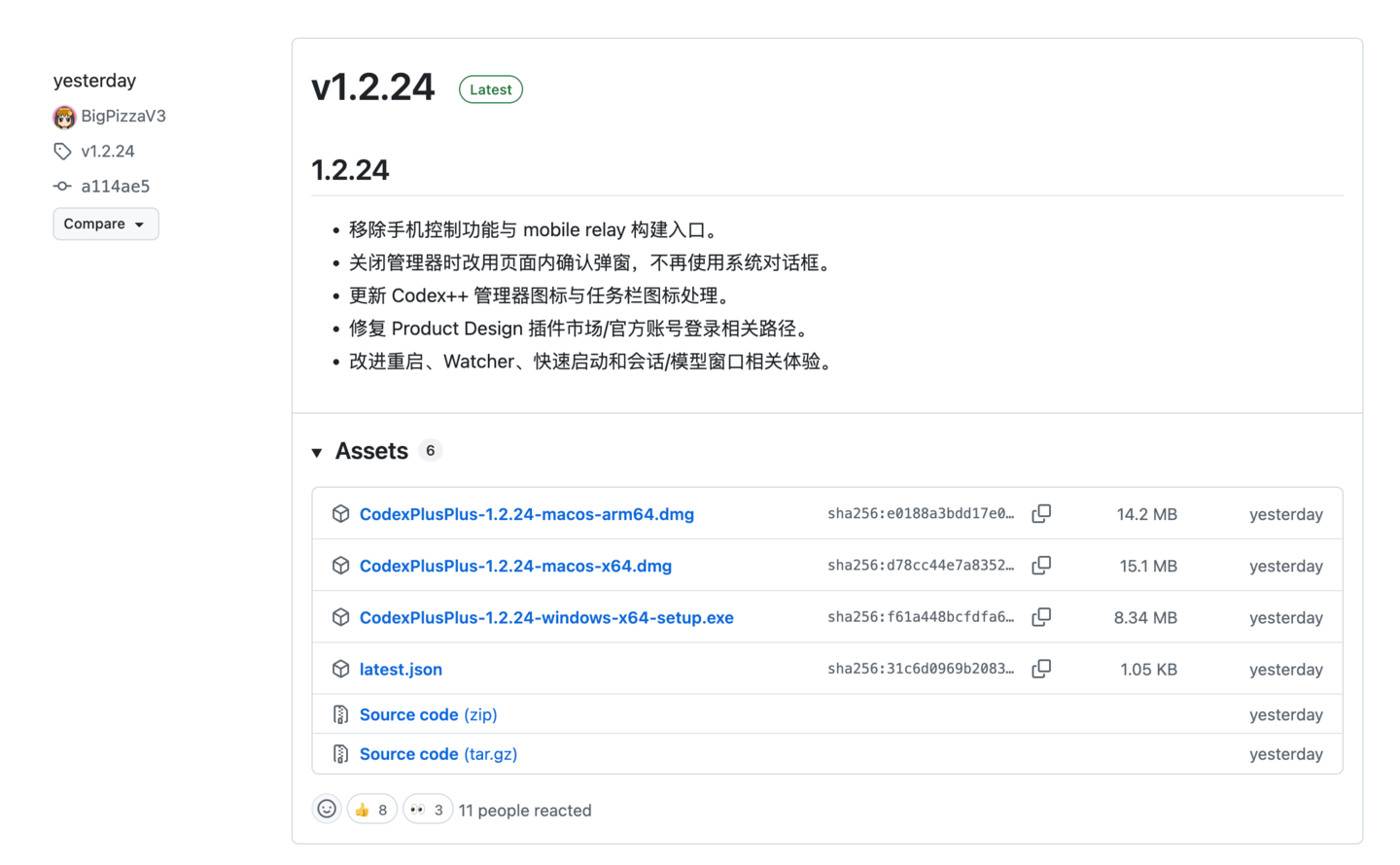
In the latest release, pick the installer for your system, download it, then install and open it. What you see after opening is the Codex++ management tool:
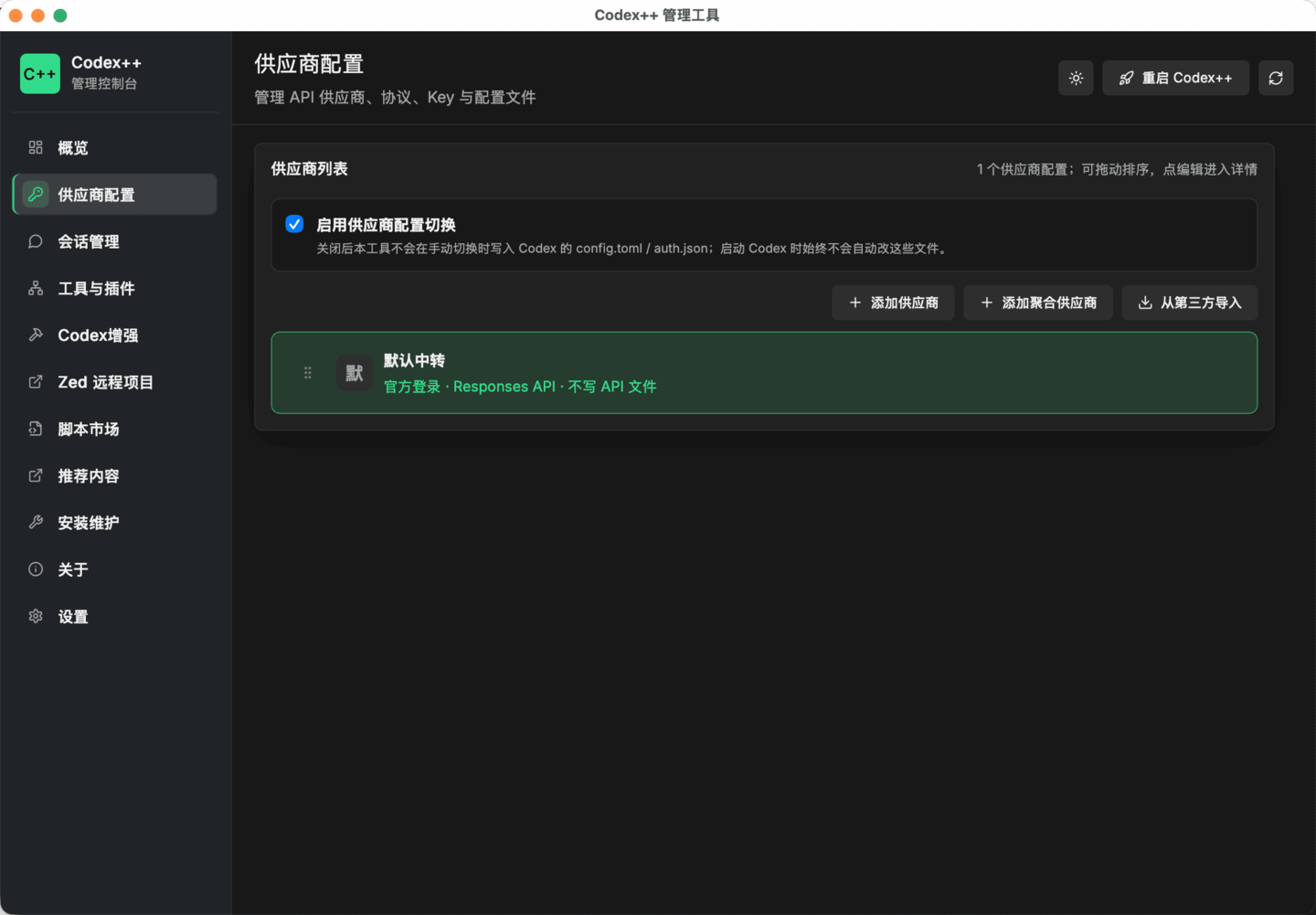
Step 2: Add a provider
Click Add Provider to create a new connection configuration:
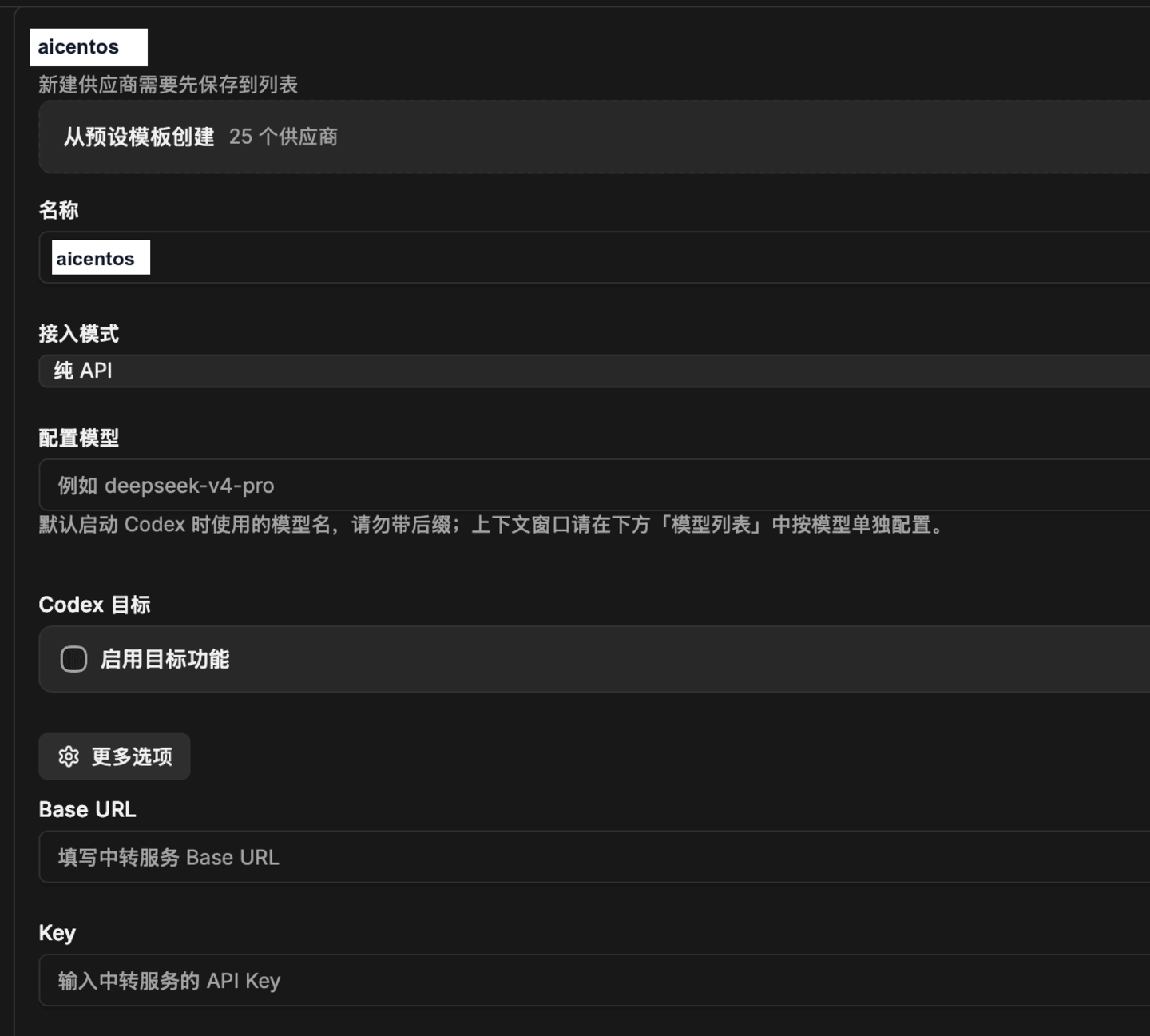
Fill in as follows:
| Field | What to enter |
|---|---|
| Name | The relay's name — anything you can recognize (e.g. aicentos) |
| Connection mode | Pure API |
| Models to configure | Models supported by aicentos — copy the full model names, separated by commas, e.g. gpt-5.5,gpt-5.4 |
Step 3: Fill in the Codex target
Under Codex target, enable it ✅ and fill in the following two items:
| Field | Value |
|---|---|
| Base URL | https://aicentos.com |
| Key | The Key generated in aicentos Token Management, for the matching group |
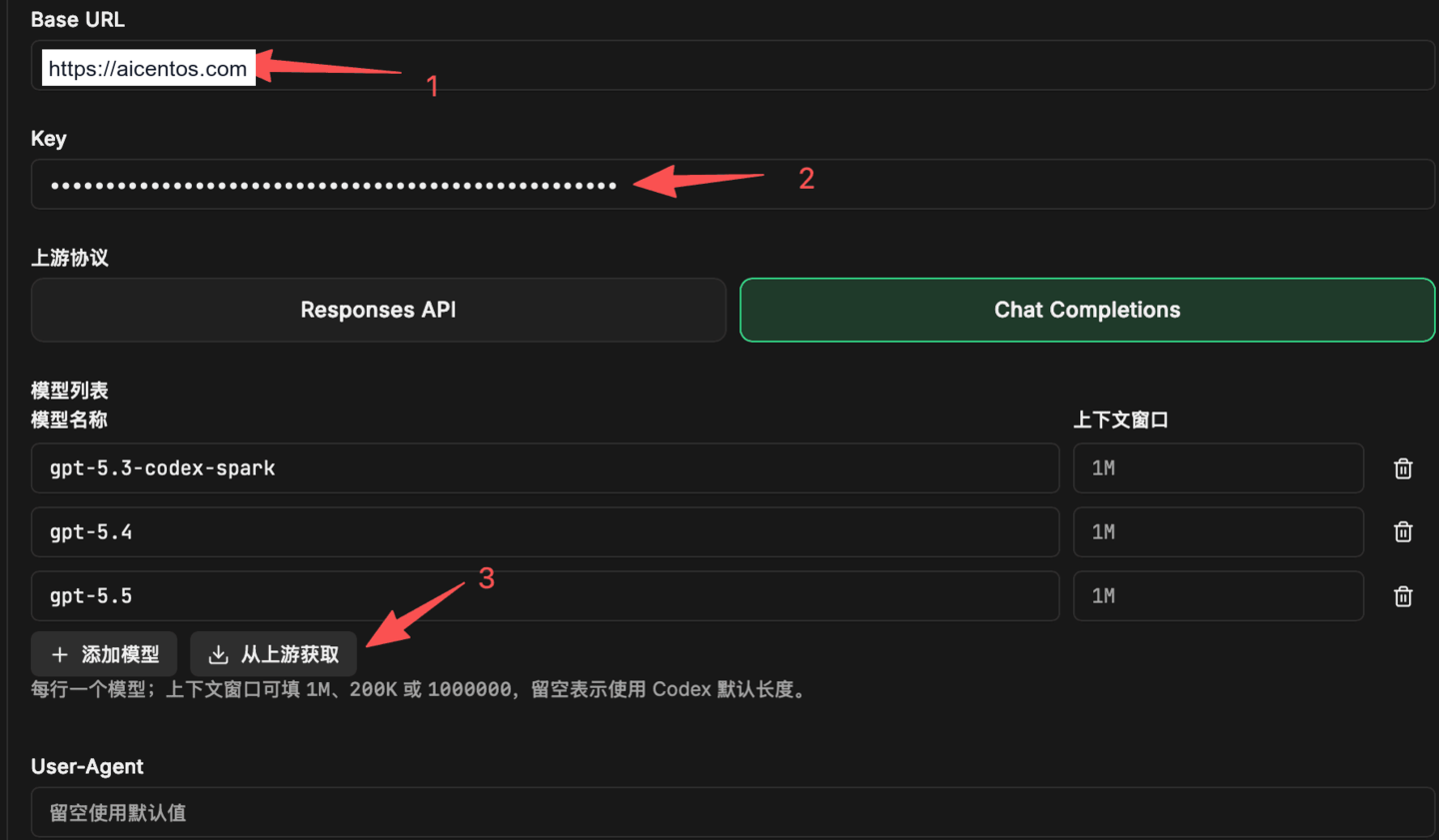
For Upstream protocol, make sure to select chat completions — other protocols will make requests fail.
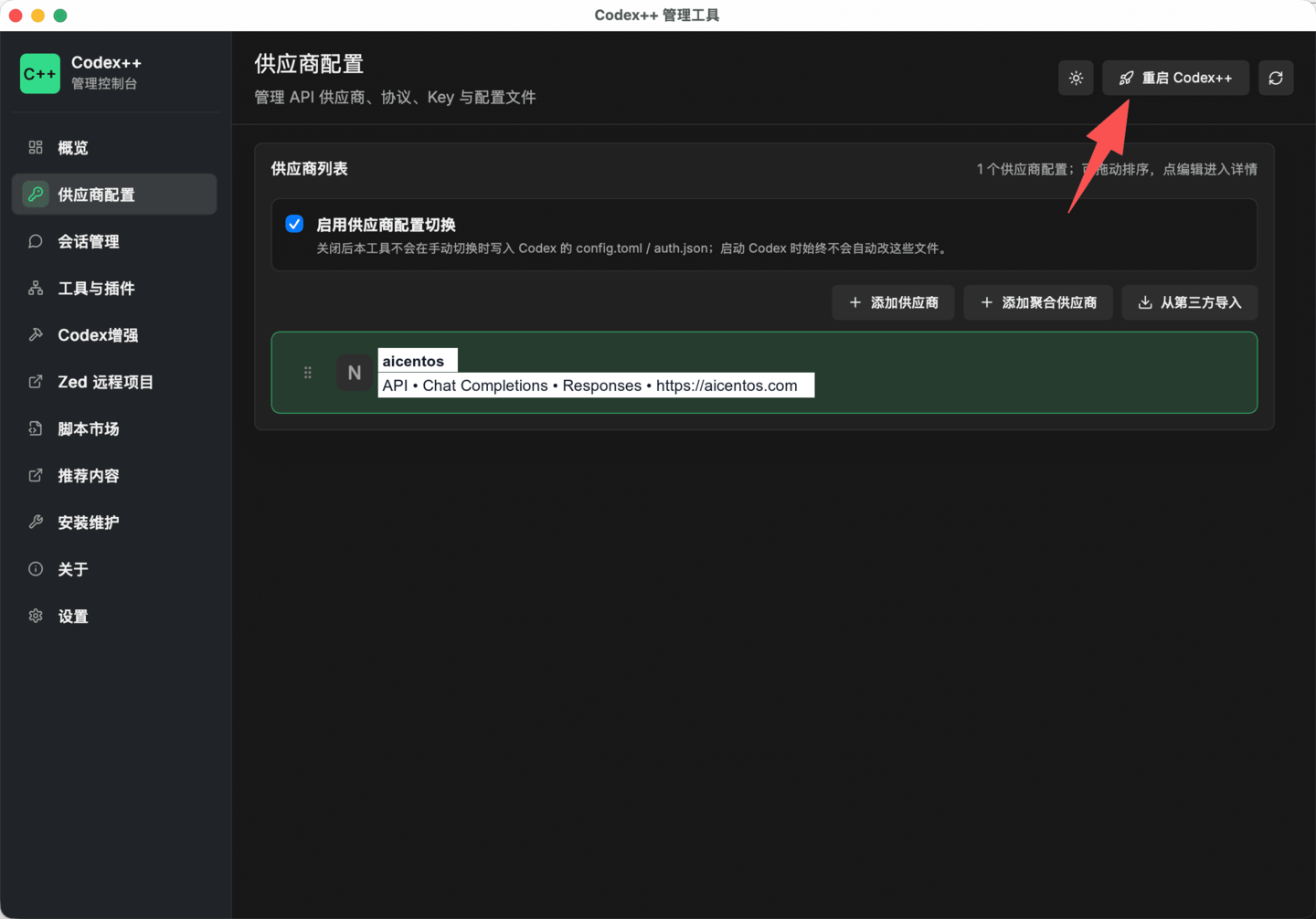
When done, click Save at the top.
Step 4: Restart Codex
After saving, click Restart in the top-right corner for the configuration to take effect:
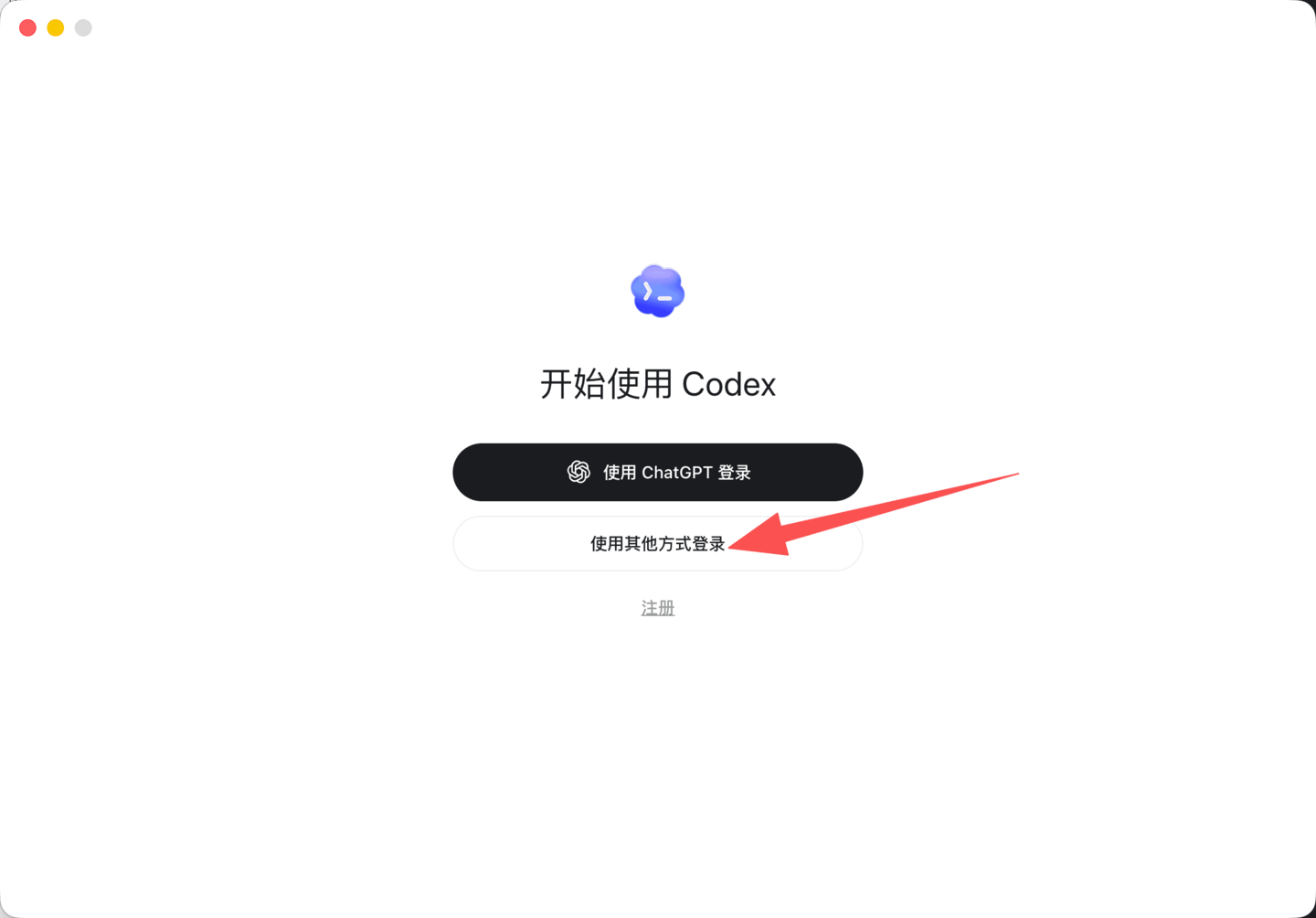
Step 5: Sign in with the Key
After the restart, choose Sign in with another method:
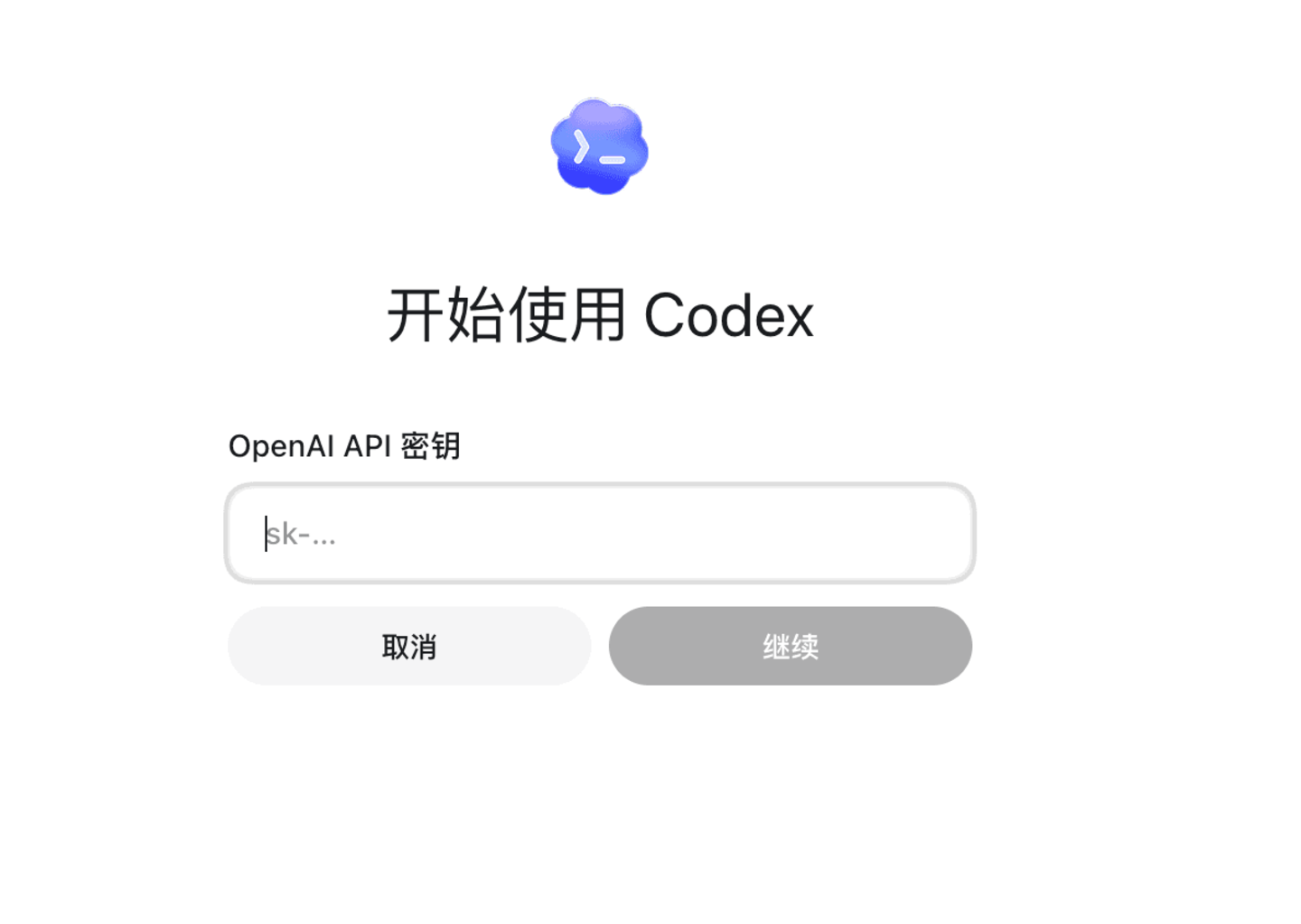
Paste the Key generated in aicentos Token Management and click Continue:
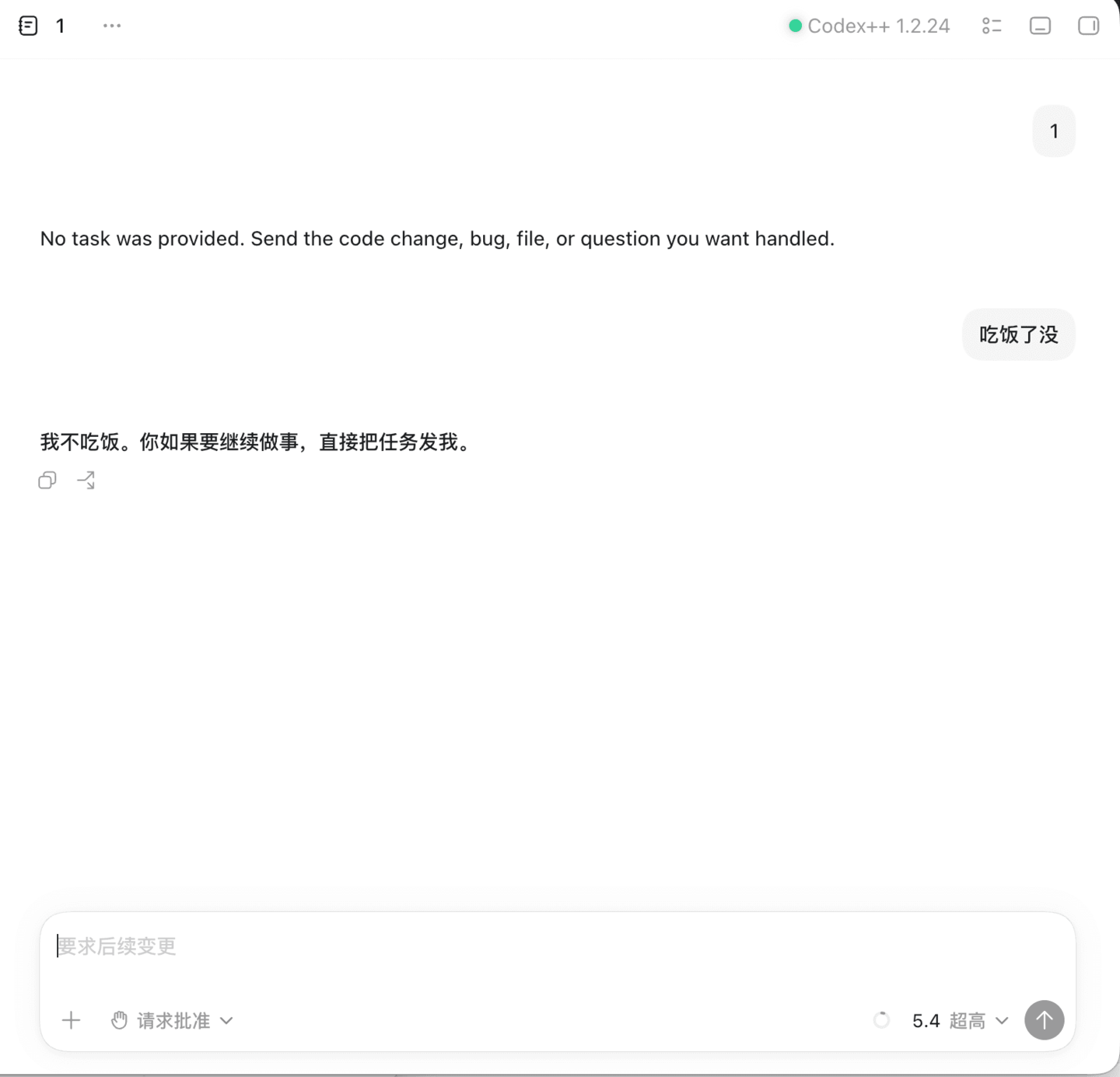
That completes the integration — you can start using Codex right away.
Troubleshooting
When requests fail, compare the Codex output with the usage logs in the aicentos console. Common causes:
- Wrong model name: follow aicentos' Supported models and copy the full model name.
- Wrong upstream protocol: it must be chat completions.
- Wrong Base URL: enter
https://aicentos.com, with no stray spaces or extra path segments at either end. - 401 / no permission: check that the Key was copied in full and that the Key's group includes the models you want to use; check your balance on the Wallet page.