 aicentos
CC Switch
One-click import from the aicentos console into CC Switch to manage Claude Code / Codex / Gemini CLI
Last updated:
CC Switch is a cross-platform AI CLI configuration manager that centrally manages model Provider configurations for tools such as Claude Code, Codex and Gemini CLI, letting you switch between CLI tools or configuration sets in one click instead of editing environment variables over and over.
The aicentos console has CC Switch one-click import built in: no need to copy the Base URL and key by hand — a few clicks write the configuration into CC Switch.
Prerequisites
- Sign in to the aicentos console
- Make sure the account has a balance (new accounts get ¥1 in trial credit; top up under Wallet when it runs out)
- Install CC Switch (see below)
Install CC Switch
CC Switch is an open-source project hosted on GitHub: farion1231/cc-switch.
Open the Releases page and, in the latest release's asset list, pick the installer for your operating system:
- macOS:
.dmg - Windows:
.msi - Linux:
.AppImage/.deb
After downloading, install it the normal way for your system and open CC Switch at least once, so the console's import link can detect the local installation.
One-click import (recommended)
Step 1: Start the import in the console
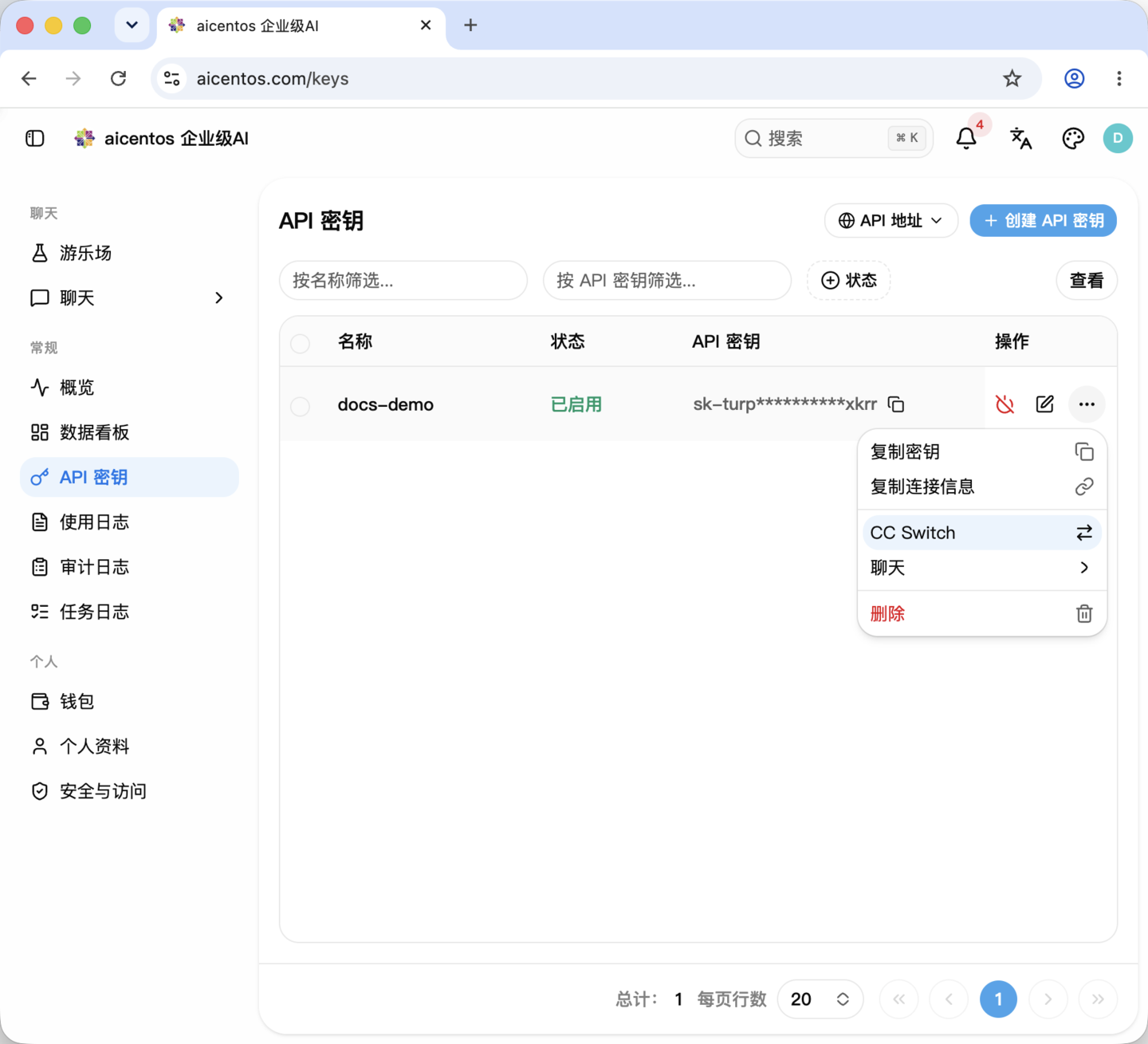
Open API Keys in the console's left sidebar, click ⋯ on the row of the key you want to use, and choose CC Switch in the menu:
Step 2: Choose the app and models
In the Fill into CC Switch dialog, choose the target app (Claude / Codex / Gemini) and confirm the models to use:
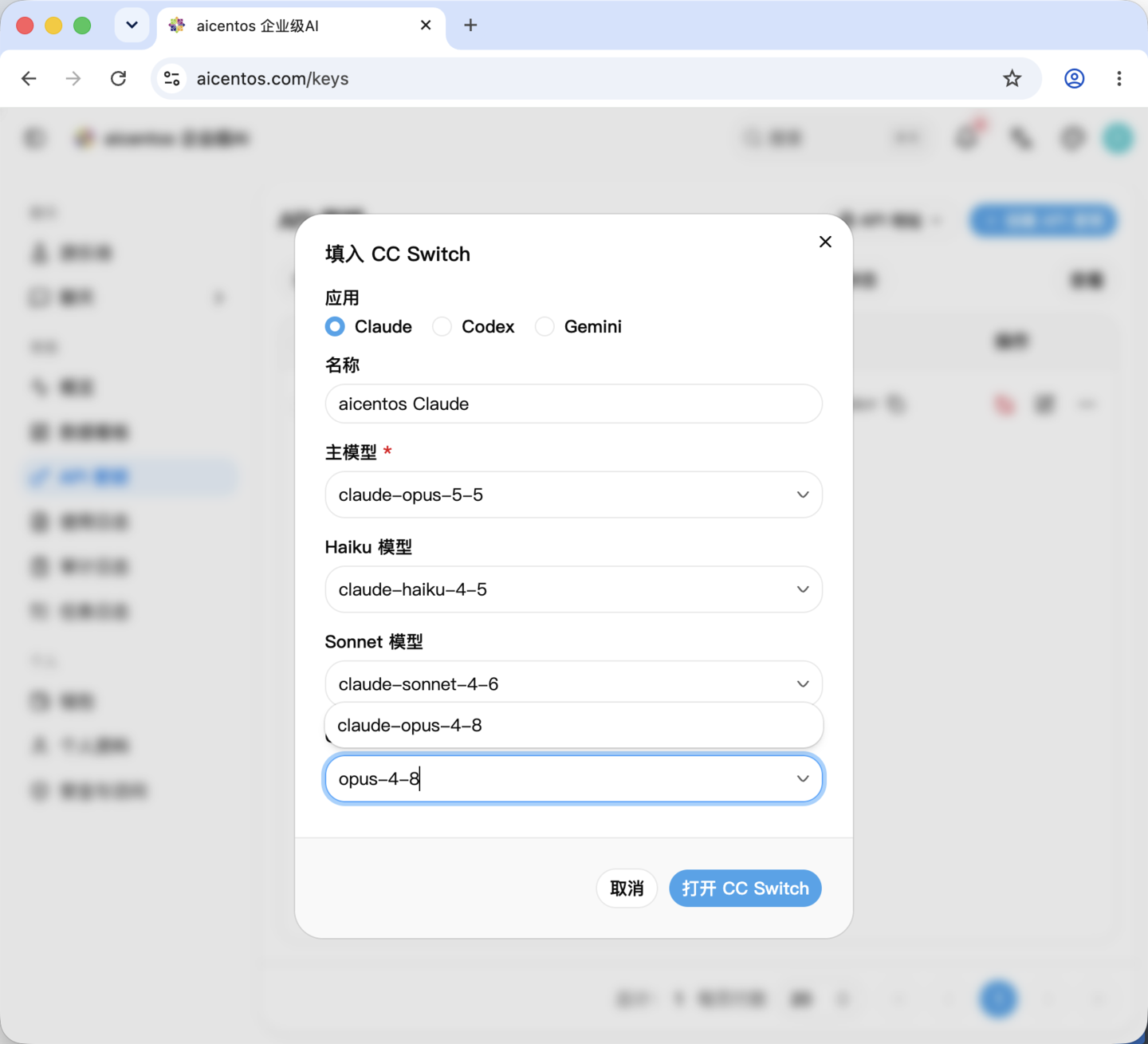
| Field | Description |
|---|---|
| App | Which CLI's configuration to write. Claude uses the Anthropic protocol, Codex uses the OpenAI-compatible format, Gemini uses the native Gemini format |
| Name | The configuration name shown in CC Switch after the import; customizable |
| Main model | The default model for this configuration; required |
| Haiku / Sonnet models | Tiered models under the Claude app; set as needed |
For model names, see Supported models, e.g. claude-opus-4-8, claude-sonnet-5, claude-haiku-4-5.
When done, click Open CC Switch.
Step 3: Confirm the launch in the browser
The browser asks whether to open CC Switch; click Open CC Switch.app:
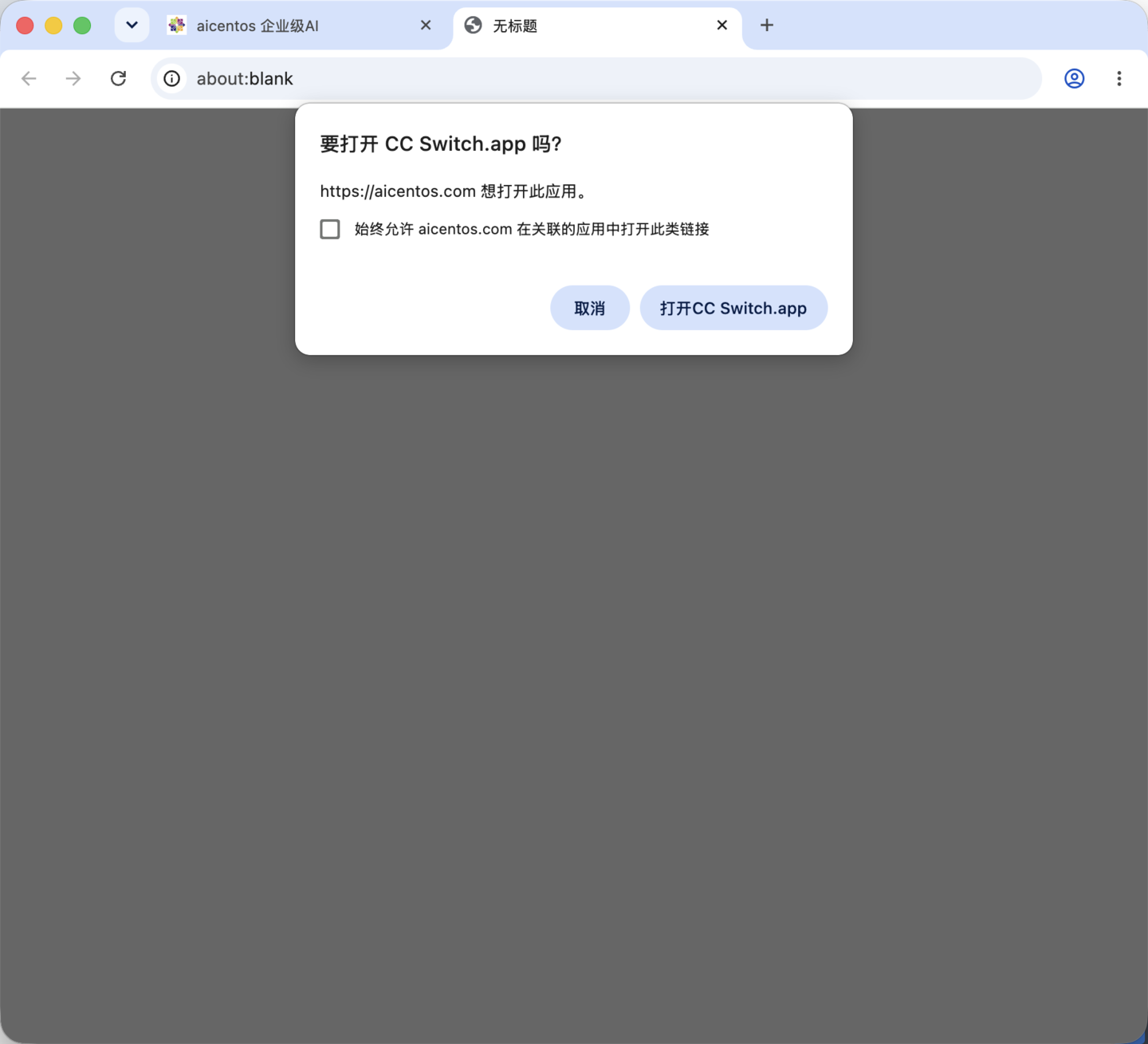
If you check "Always allow aicentos.com to open links of this type in the associated app", this confirmation dialog will not appear again on future imports.
Step 4: Confirm the import in CC Switch
CC Switch pops up Confirm provider import; verify the information and click Import:
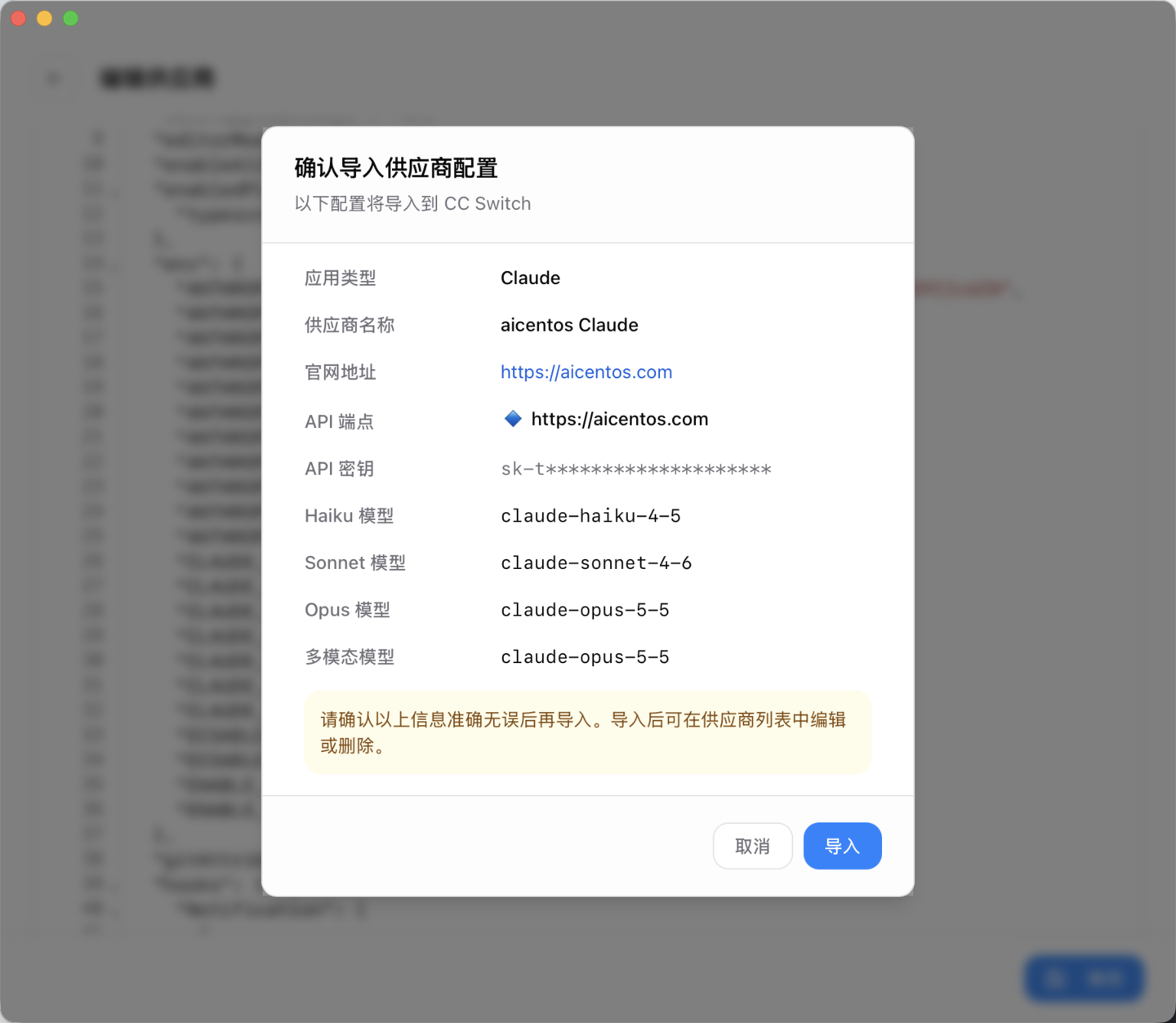
The dialog lists the endpoint, key and tiered models that will be written; after verifying, click Import.
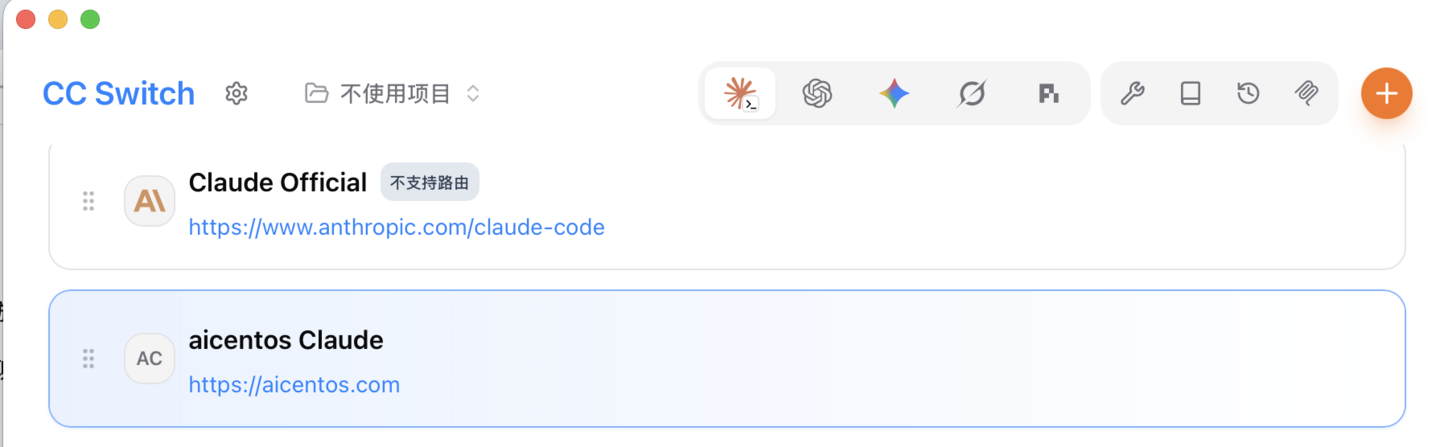
Once the import completes, aicentos Claude appears in CC Switch's configuration list; click it to switch:
Manual configuration
If you would rather not use one-click import, click Add new provider in CC Switch and fill in manually:
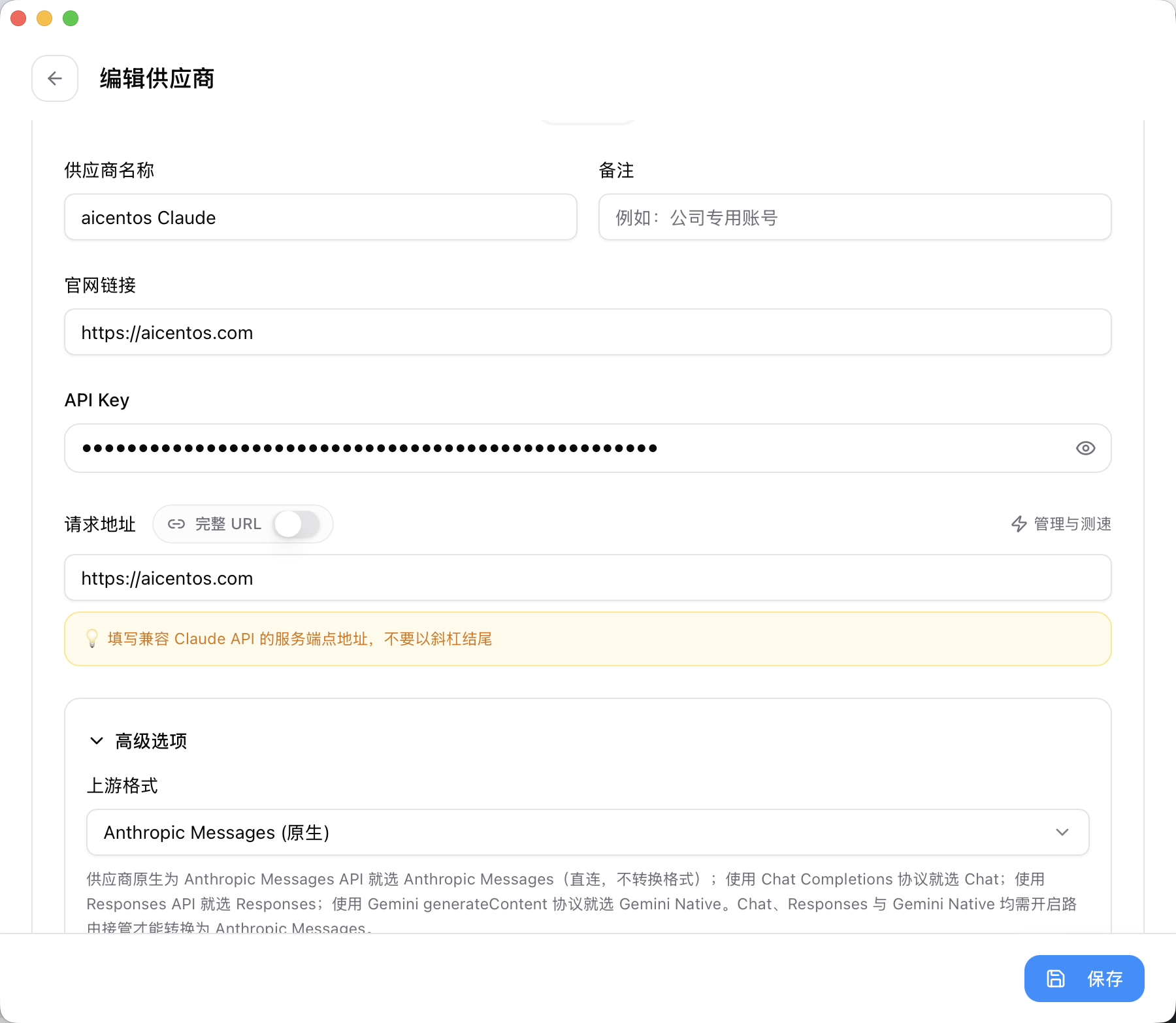
| Field | What to enter |
|---|---|
| Provider name | aicentos (custom, anything recognizable) |
| API Key | The key created on the console's API Keys page, shaped like sk-xxxxxxxx |
| Request URL | Enter https://aicentos.com for Claude / Gemini; https://aicentos.com/v1 for Codex |
For the Anthropic protocol, enter the root address only — do not manually append
/v1/messages; the client concatenates it automatically.
Next steps
- Model status monitoring — real-time availability of each model
- Supported models — the full model list and IDs
- Billing — top-ups and pay-as-you-go pricing